
Find and manage warranties
Search and open warranty records from your workspace.
Find a record
- Open Warranties in the selected workspace.
- Search by customer name or phone, product, brand, model, serial number, or warranty ID.
- Choose All, Active, Expiring soon, Expired, or Void as needed.
- Use the page controls to browse more results, then open the warranty.
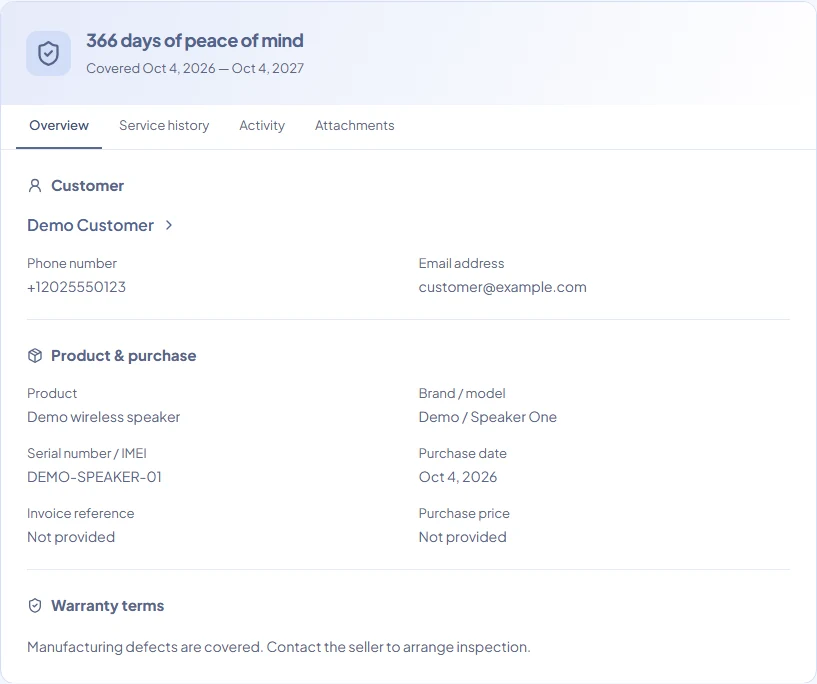
Understand the status
- Active: the warranty has not been voided and its expiration date has not passed.
- Expiring soon: an Active warranty ending within the next 30 days; this is a filter, not a separate status.
- Expired: the coverage end date has passed. The record remains available.
- Void: the issuer has voided the warranty. The record and public link remain, but it is ineligible for new online claims.
Use the detail page
Overview shows the customer, product, coverage, and terms. Service history holds repair/service entries. Activity lists warranty events. Attachments contains uploaded files for members with private warranty access. View claims opens claims associated with that warranty when available.
Owners, Admins, and Staff can search private customer and serial fields. Technicians see only assigned warranties and cannot search private customer information or full serial numbers.
If nothing appears
Clear the status filter and search, check the selected workspace, and try a shorter product name. A Technician may need an assignment reviewed. If the original link also fails, contact the issuer or Warly with the general error.