
Add and update service records
Record a repair or service event on an issued warranty.
What a service record is
A service record describes work performed on an issued warranty’s product. It appears under that warranty’s Service history and in the associated merchant customer profile. It does not automatically change the warranty status, extend coverage, or update a claim.
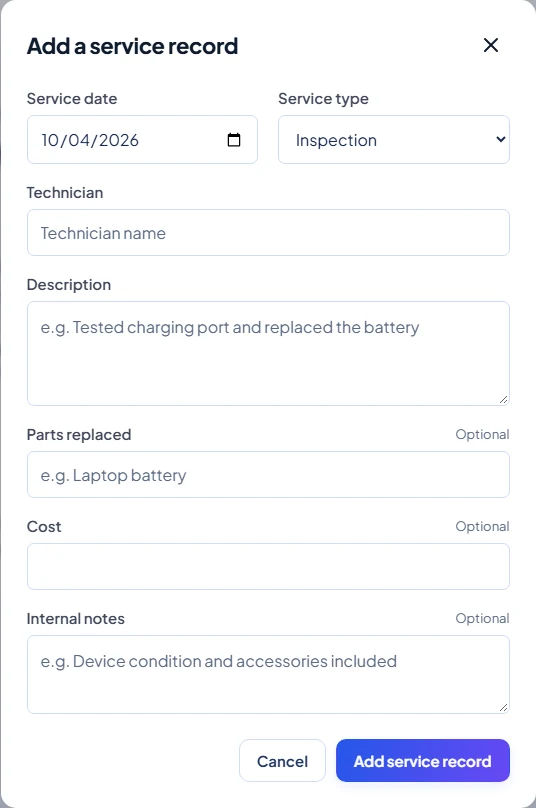
Add a record
- Open the warranty and select Service history, then Add service.
- Enter the Service date, Service type, Technician name, and Description. The form prevents future service dates.
- Choose Inspection, Maintenance, Repair, Part Replacement, Warranty Claim, or Other. These are types of work, not progress statuses.
- Optionally enter Parts replaced and Internal notes. Cost is available to Owners, Admins, and Staff, but not Technicians.
- Save the record and check it in the service list.
Edit and permissions
Owners and Admins can edit saved service records. Staff can add records but cannot edit them afterward. Technicians can add records only on assigned warranties and edit only records they created, even if other entries are visible.
Use the edit control on the entry, review all fields, and save. Creation and updates are recorded in warranty Activity. There is no service deletion control.
Visibility, files and claims
Service history is currently a merchant workspace feature; it is not displayed on the public warranty or Customer Portal. Internal service notes are available to authorized workspace viewers, including the assigned Technician; cost is hidden from Technicians.
The service form has no attachment upload or claim-link field. If a repair relates to a claim, record the service on the warranty and update the claim separately. Selecting Warranty Claim as the service type does not connect or resolve a claim.