
A clearer path from claim to resolution.
Give customers a simple way to explain a problem. Keep the evidence, review and outcome together so your team can move each claim forward.
Claims: Pro, Scale and Enterprise. Also available during an active, eligible Pro trial.
One claim. A clear next step.
- 01 / SubmitCustomers verify access, describe the issue and add supporting files.
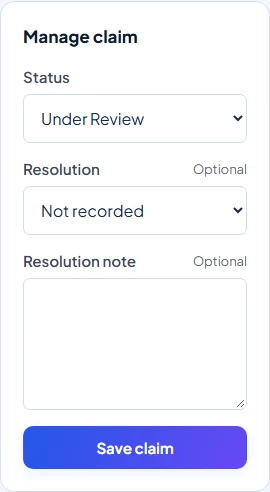
- 02 / ReviewAuthorized team members review and approve claims; Owners and Admins can also reject or resolve them.
- 03 / Follow progressLinked customers see status and outcomes in My Claims.
Start with the right warranty
Customers open their warranty link or scan its QR code to reach the Claim Center. Each request stays connected to the product and its recorded coverage. New claims require an Active warranty and a business on an eligible plan.
How customers submit claimsVerify customer access
Customers with a linked, verified account can proceed. Guests with an email recorded on the warranty verify access with a six-digit email code. Other contact setups use the methods below.
Details and availability
- Email recorded: enter the six-digit code sent to that email.
- Phone only: match the recorded phone number, including country code. This is not SMS verification.
- No recorded contact: request access for the issuer to review.
See the issue with supporting files
Customers describe what happened and add photos or documents to help your team review the issue. Verification is required before submission.
Details and availability
- A successful submission creates a reference and a Submitted status. Up to five JPG, PNG, WebP or PDF files are supported, up to 10 MB each.
- Files upload after submission. If an upload fails, customers keep the claim reference and contact the business; files cannot be added later in the current customer screen.
Give your team a shared view
Find claims by status and review the issue, warranty terms, files and history in one place. Role-based access keeps decisions with the right people. Internal notes stay private to your business.
Review and update a claimMake the next step clear
Authorized team members review claims and can approve permitted next steps. Owners and Admins can also reject claims or record a resolution. Status tracking keeps the decision and outcome together.
Details and availability
- Owners, Admins, Staff and Technicians can make permitted progress updates, including approval.
- Only Owners and Admins can reject, resolve or close claims. Resolution records Repaired, Replaced, Refunded, Not Covered or Other; it does not execute a refund.
- Service work is recorded separately. See the lifecycle guide for status transitions and reopening rules.
Let customers follow progress
Customers with a linked Customer Portal account can follow status updates, view the outcome and access uploaded files in My Claims. Guests keep their reference and contact your business for updates.
Details and availability
- Status-change emails may be sent when a customer email is recorded and delivery is available. New-claim emails go to the business contact email.
- There is no customer messaging thread in the claim screen. Follow up through your usual business channel.
Make your next warranty easier to manage.
Create an account today. Eligible Free workspaces can choose a 14-day Pro trial during onboarding or start it later in Plan & billing. No credit card required for the trial.
Paid subscriptions require arranged activation. Contact Warly to discuss the right plan. Self-service checkout is not available.