
Update business details and warranty defaults
Manage the business information customers see and the defaults used for new warranties.
Update business details
- Open Settings as an Owner or Admin.
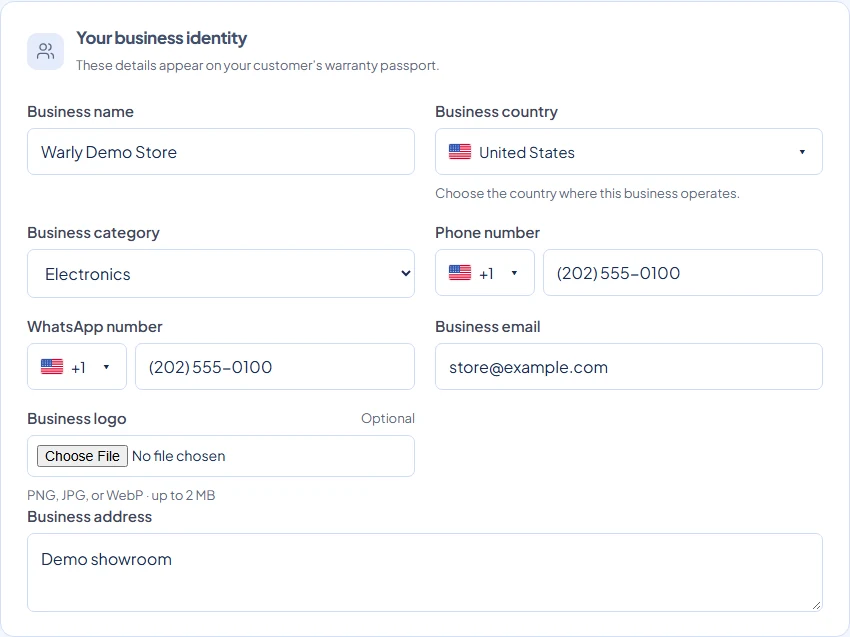
- Review Business name, Business country, Business category, Phone number, WhatsApp number, Business email, and Business address.
- Optionally choose a PNG, JPG, or WebP Business logo up to 2 MB.
- Select Save changes and check the public warranty view for the business details customers now see.
Workspace timezone
Owners and Admins can search for a city or region under Workspace timezone, review the local-time preview, confirm, and save. A browser timezone is only a suggestion when creating a workspace. Existing workspaces continue in UTC until someone confirms or changes the setting.
This setting controls warranty expiration days, dashboard periods, claim and activity date filters, and new reporting periods. Existing and new warranties remain valid through their expiration date in the current issuing workspace timezone. On that date, Expires today means zero calendar days remain.
Changing timezone can change coverage near midnight, but never changes stored purchase dates or expiration dates. Billing, trial and security deadlines remain the same absolute moments. Existing saved reports retain their legacy UTC interpretation; queued and generated reports keep their original context.
Calendar dates display the same date everywhere. Business event times use the workspace timezone, even if your browser uses another timezone. Customer warranties from different businesses follow each issuing workspace.
What these settings affect
Business name, contacts, address, and logo are used on customer-facing warranty pages. WhatsApp and phone settings control the seller contact actions. The business email is also the destination for new-claim notifications.
Business country provides a default when local phone numbers need a country, including customer imports. Check existing contacts separately; changing country does not rewrite saved numbers. Business category changes the examples and labels used while entering warranties and services.
Changing the business email does not change your account’s sign-in email. The current Settings page does not include account password controls or per-notification email switches.
Set warranty defaults
Choose Default warranty duration and enter Default warranty terms. They supply a starting point for new warranties and catalog products; product selection can provide its own defaults. Review them for each sale. Updating defaults does not rewrite issued warranties or existing catalog entries.
Saving and upload issues
Staff and Technicians cannot change these settings. Check required fields, valid phone numbers, and logo type/size if saving fails. If details saved but the logo upload failed, reopen Settings and retry the logo; do not create a new workspace.