
Submit a warranty claim
Report a product issue through the Claim Center.
Before you start
A new online claim requires an Active warranty and an issuer whose current plan supports claims. Open the seller’s warranty link or scan its QR code, then choose Open Claim Center. If Claims unavailable appears, contact the seller using the contacts on the warranty.
Verify access
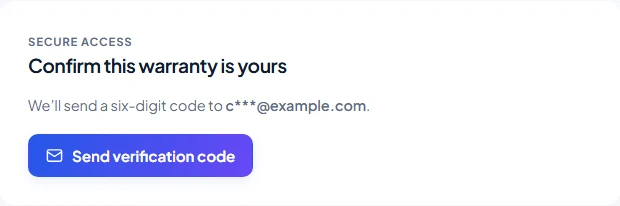
- If the warranty has an email address, select Send verification code and enter the six-digit code sent to the masked address shown. You do not need to create an account.
- If it has a phone number but no email, enter the phone recorded on the warranty, including its country code. This is a number match, not an SMS code.
- If no customer contact was recorded, use Request access to claim with your name, contact details, and an explanation the issuer can check. Keep the request page open and use its status check after the issuer responds.
- If you are signed in to a verified customer account already linked to this warranty, the Claim Center recognizes that association and you can proceed without the guest verification step.
Describe and submit the issue
- Enter the issue description and when you noticed it. The description can contain up to 5,000 characters.
- Optionally select up to 5 JPG, PNG, WebP, or PDF files, each no larger than 10 MB.
- Select Submit claim once. Keep the reference and Submitted status shown on the confirmation.
- For ongoing tracking, use My Claims in your linked Customer Portal account or contact the issuer with the reference.
Files and interrupted submissions
The claim is created before its files finish uploading. If the confirmation says a file could not be uploaded, keep the claim reference and contact the issuer about the missing file. Do not submit a duplicate claim just to retry the upload; the current customer screen has no add-files action after submission.
A Pro trial workspace can accept up to 20 claims. Reaching the issuer’s allowance can block a new submission. Ask the issuer for help if this happens.
Verification is temporary
If Warly asks you to verify again after waiting or returning later, restart from the warranty’s Claim Center. Keep codes private. Verifying a warranty does not create a customer account or automatically add a new email address to it.