
Import customers or products from CSV
Upload, map, preview, and confirm a CSV import.
Open Product catalogBefore importing
Owners and Admins can import customers and catalog products. Warranty and service imports are not available. Import adds records; it does not merge or overwrite existing ones. There is no whole-import rollback, so review the preview before confirming.
Prepare your file
Export your spreadsheet as comma-separated UTF-8 CSV with a header row, at least one data row, at most 500 data rows, and a file size up to 2 MB. Use 1–30 distinct nonempty column headers. Every row must have the same number of columns. Quote values containing commas or line breaks; represent a quote inside a quoted value with two quotes.
Customer column mapping
| Your CSV column (example) | Warly field | Requirement |
|---|---|---|
| Customer name: Demo Customer | Name | Required |
| Mobile: +12025550123 | Phone number | Required; international number or local number with country |
| Contact email: customer@example.com | Email address | Optional; valid email when supplied |
| Country: US | Country code | Optional recognized two-letter code for local phone numbers; otherwise workspace country |
Product column mapping
| Your CSV column (example) | Warly field | Requirement |
|---|---|---|
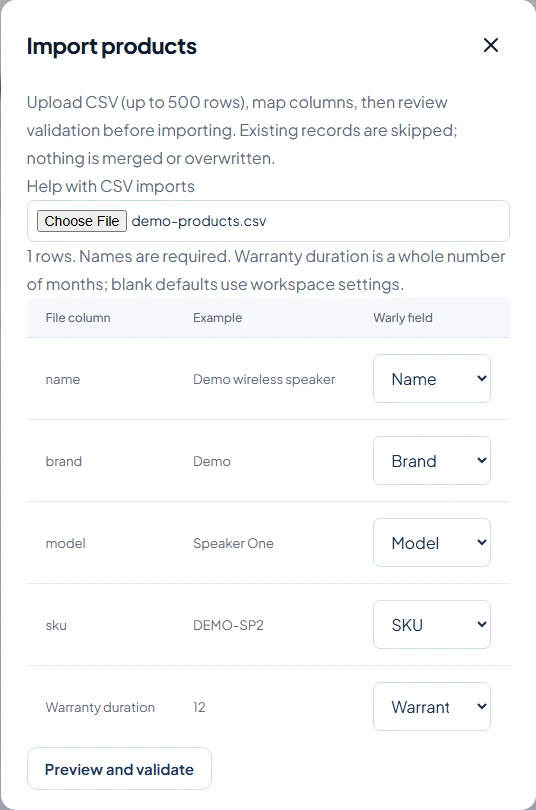
| Item: Demo appliance | Name | Required |
| Maker / Model / Code / Group | Brand / Model / SKU / Category | Optional separate columns |
| Warranty months: 12 | Warranty duration (months) | Optional whole number from 1 to 120; blank uses workspace default |
| Coverage: Manufacturing defects | Warranty terms / coverage | Optional; blank uses workspace default |
Upload, map and confirm
- Open Customers or Product catalog and select Import CSV.
- Choose your CSV file. Review each suggested mapping and its sample value.
- Map each Warly field once. Select Ignore this column for fields you do not need.
- Select Preview and validate. Read the ready, duplicate, and invalid results for every row.
- Select Confirm: import valid rows. Wait for the imported count and review any remaining invalid rows.
How duplicates are handled
- Customer imports skip existing normalized phone numbers or matching email addresses, as well as duplicate rows. Email comparison ignores letter case.
- Products with a SKU are compared by SKU, ignoring case. Without a SKU, the name, model, and brand together identify a duplicate.
- Duplicates are skipped, never merged. Valid rows can import even when other rows are invalid. Correct invalid rows in the CSV and preview again.
After an interrupted import
Some valid rows may already have been saved. Reopen the list and check it, then preview the same file again; existing records will be skipped. If the file, mapping, or workspace defaults changed, a fresh preview is required. Keep the original file and results until you finish reviewing the import.