
Invite and manage team members
Send invitations, change roles, and revoke pending access.
Before inviting someone
Owners and Admins can invite members when the workspace has team access, including during an active Pro trial. Only Owners can invite an Admin. Admins can invite Staff and Technicians.
The Pro trial allows 5 team members including the Owner. Active members and unexpired pending invitations occupy places. Revoke an unused invitation or remove an eligible member if the trial allowance is full.
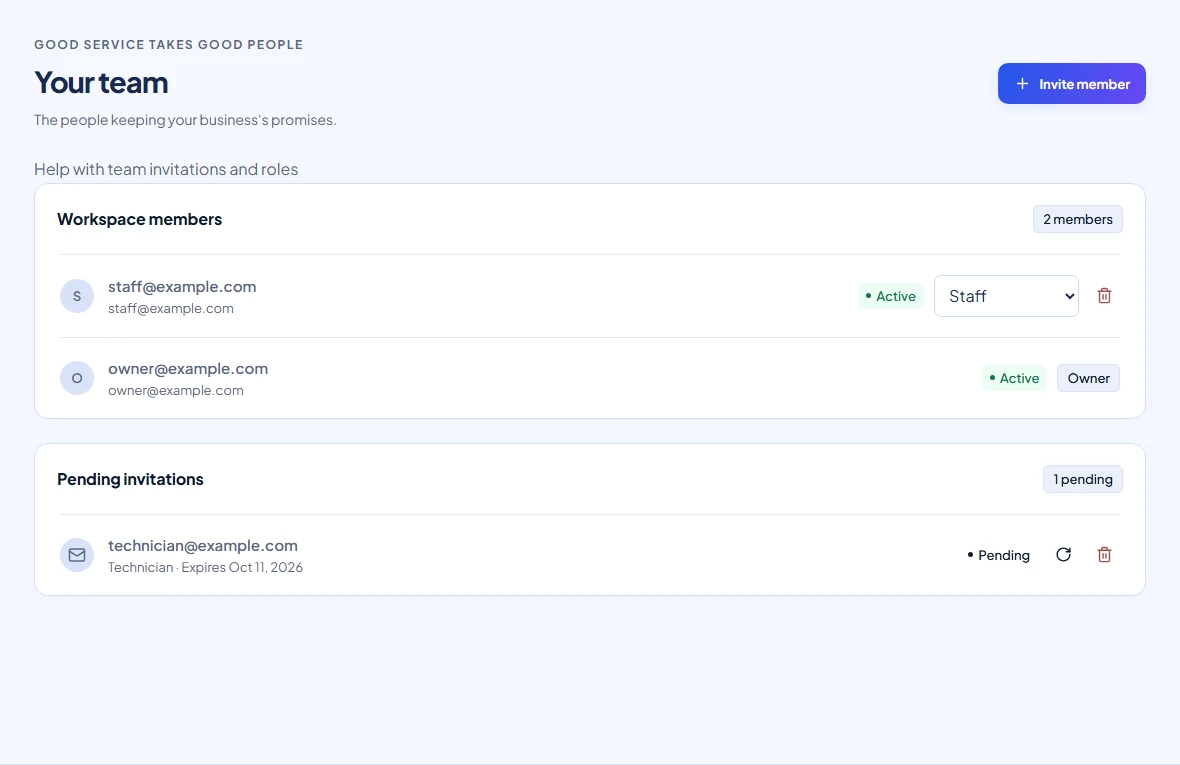
Send an invitation
- Open Team and select Invite member.
- Enter the person’s email and choose Admin, Staff, or Technician as permitted.
- Submit the invitation and check Pending invitations for its status and expiration date.
- Ask the recipient to open the newest invitation email. Invitations expire after 7 days.
Accept as an existing or new user
The recipient opens the invitation link and signs in with the invited email. A new user chooses Create account, verifies that same email, and signs in. Warly then accepts the pending invitation and opens the workspace. Joining does not require creating another business.
If already signed in with another account, use Sign in with a different account. An invitation cannot be used to grant access to a different email address.
Resend or revoke
In Pending invitations, use Resend invitation to send a fresh link and expiration date. The old link stops working. Use Revoke invitation to cancel pending access. A duplicate active invitation to the same email is rejected; manage the existing one instead.
If email delivery fails or the trial email allowance is reached, check the invitation in Team and ask Warly for help. Do not repeatedly create invitations.